

Resolving Double Icons on Ubuntu Desktop Caused by Dual Desktop Icons NG Instances
Introduction
Have you recently noticed double icons on your Ubuntu desktop, where one set of icons is interactive while the other appears "stuck" to the wallpaper? You’re not alone. This bug, related to the popular Desktop Icons NG (DING) extension, has caused many users to experience duplicate desktop icons. The issue is due to two instances of DING running simultaneously, leading to overlapping icon sets on your desktop. Thankfully, the solution is straightforward and can be easily resolved with a few adjustments.
Why Double Icons Appear
The GNOME extension Desktop Icons NG (DING) is responsible for managing desktop icons in Ubuntu. It adds icons to the desktop environment, giving users the flexibility to interact with files and shortcuts directly from their desktop screen. When two instances of DING are active simultaneously, the system attempts to display the icons twice. As a result, one set behaves normally (clickable, movable), while the other set looks like part of the wallpaper and is unresponsive.
Quick Fix: Disabling One DING Instance
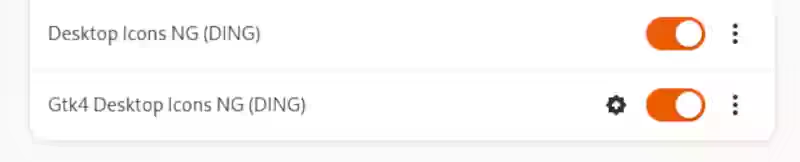
To fix this, you’ll need to disable one of the running DING instances in GNOME Extensions. Here’s how:
- Open the Extensions App:
- Go to Applications > Accessories > Extensions. This will open the GNOME Extensions app, which lets you manage various desktop extensions.
- Locate the DING Extension:
- Scroll down to find Desktop Icons NG (DING). You may notice two instances of this extension listed.
- Disable the Duplicate Instance:
- Turn off one of the two DING instances. Ensure that only one instance is running.
- Verify Your Desktop:
- After disabling the duplicate instance, check your desktop to confirm that the icons have returned to normal, with only one set of interactive icons displayed.
Avoiding Future Issues
This bug usually appears after a system update or extension upgrade. To prevent future issues:
- Regularly review your Extensions app to ensure that only one instance of each extension is active.
- If the issue reoccurs, simply follow the steps above to disable any duplicate instances.
Conclusion
Double icons on Ubuntu desktop can be visually jarring, but the solution is quick and easy. By disabling the extra DING instance, you’ll restore your desktop to a single set of interactive icons. If you encounter other desktop issues, the GNOME Extensions app is a great place to start troubleshooting.

Genie
I search for the answers that the big search engine won't answer.