How to Enable Developer Mode on Fire TV: Unlocking Developer Options for Sideloading Apps
Fire TV, much like Android devices, has a hidden Developer Mode that allows you to unlock advanced options including settings, and install apps from unknown sources, also known as sideloading. Fire TV's operating system, Fire OS, is based on Android, so the process of enabling developer mode is quite similar to what you would do on an Android smartphone or tablet.
In this guide, we'll walk you through how to enable Developer Options on your Fire TV and explain how you can use these settings to install apps from outside the official Amazon App Store.
Step-by-Step Guide to Enabling Developer Mode on Fire TV
1. Access Fire TV Settings
From your Fire TV’s Home screen, navigate to the settings by selecting the gear wheel icon in the top-right corner of the screen. This will take you to the main Settings menu, where you can manage everything from device preferences to app permissions.
2. Find "My Fire TV"
Once in the Settings menu, scroll down and select My Fire TV. This section contains all the important system settings, including those related to developer options.
3. Unlock Fire TV Developer Options
Now, this is where things get interesting! Similar to enabling developer mode on Android devices, you need to "unlock" this hidden menu:
- Select About within the My Fire TV menu.
- Inside the About section, scroll down and find Fire TV (or Device Name).
- Tap the Fire TV (or Device Name) button ten times. As you tap, you’ll notice a countdown at the bottom of the screen.
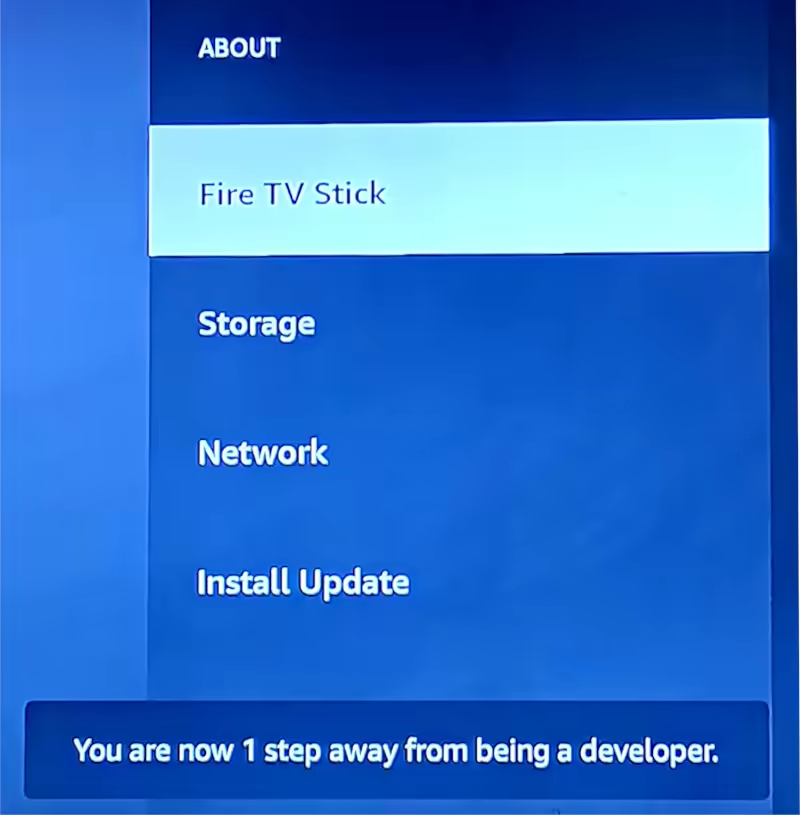
When the countdown reaches zero, a message will pop up saying “No need, you are already a developer.” Congratulations! You've just unlocked the developer mode on your Fire TV.
4. Access Fire TV Developer Options
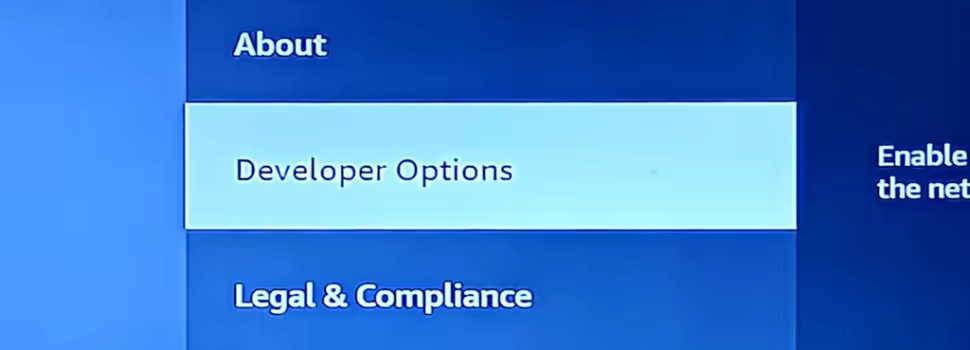
After enabling developer mode, it may seem like nothing has changed at first glance. To access the new menu, press the Back button on your remote to go back to the previous My Fire TV menu.
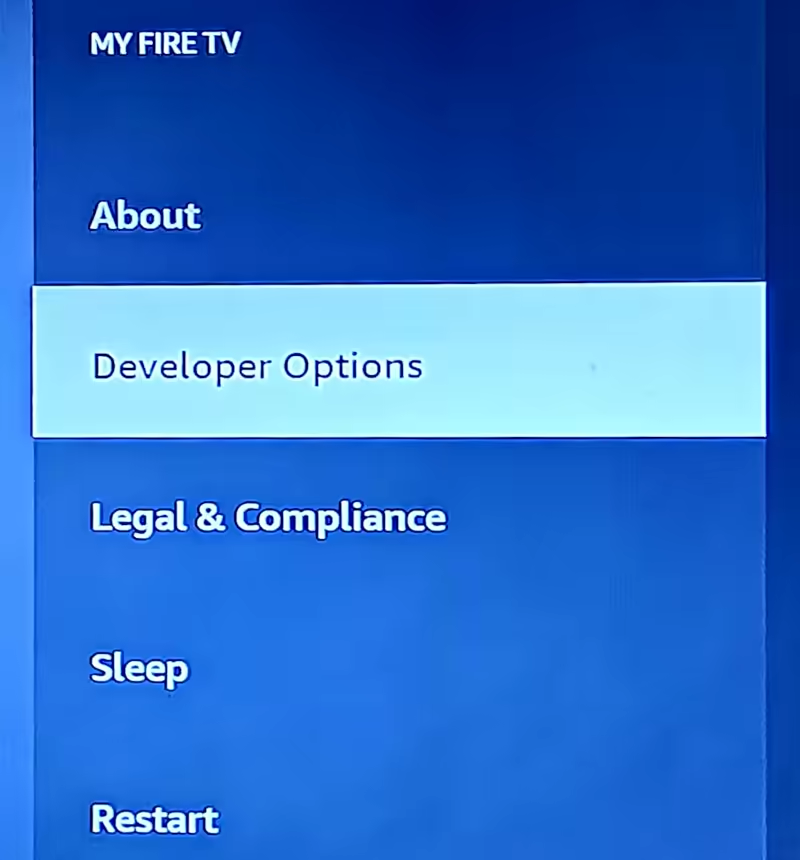
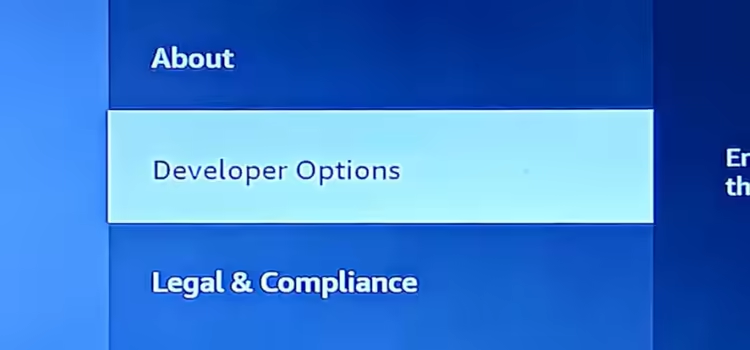
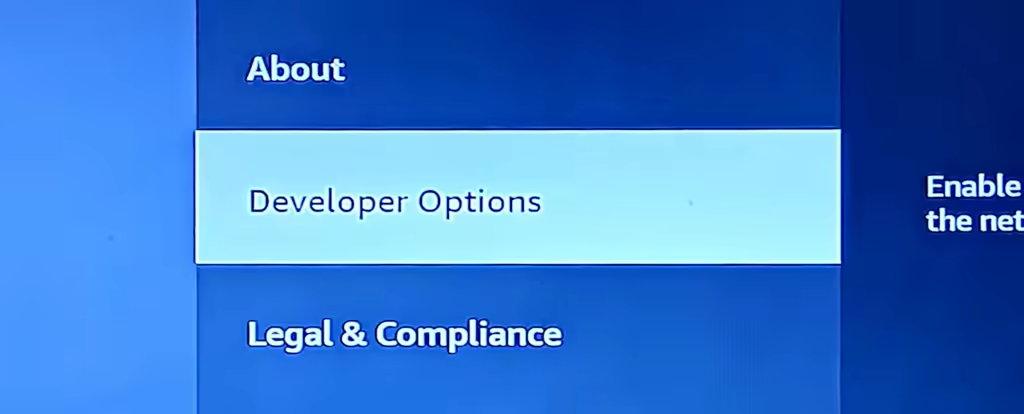
Now, you'll notice a new option called Developer Options listed below About. Select this to enter the newly unlocked menu.
5. Explore Developer Options
Inside Developer Options, you will find several advanced settings that are crucial for developers and tech enthusiasts:
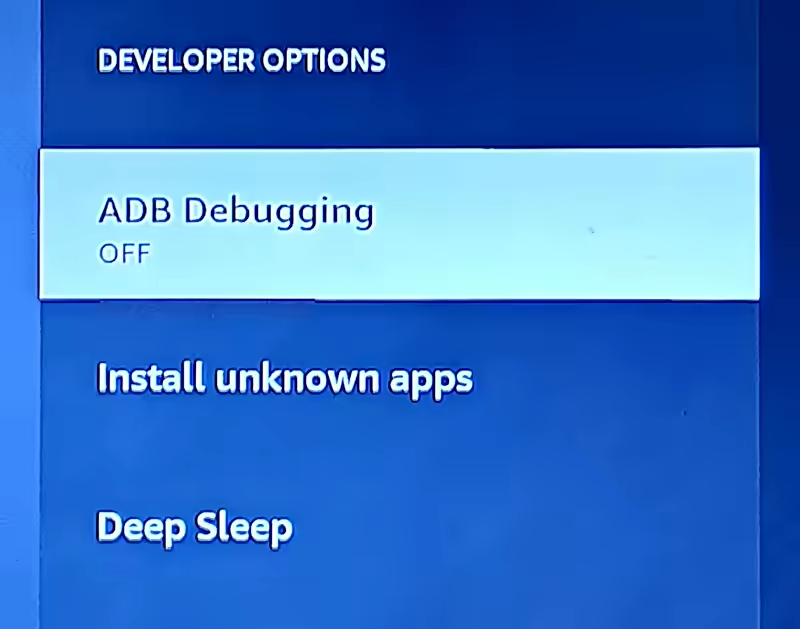
- ADB Debugging: This allows you to connect your Fire TV to a computer for debugging and development purposes via Android Debug Bridge (ADB). This is especially useful if you're developing apps or want to push apps to the Fire TV directly from a laptop or phone.
- Install Unknown Apps: This is the option you’ll use to allow the installation of apps from sources other than the Amazon App Store. When you enable this, you can sideload apps by installing APK files from external sources like websites or app repositories.
- Deep Sleep: This option manages the deep sleep function, useful for optimizing device performance or controlling how your Fire TV handles power management when it's not in use.
6. Enable "Install Unknown Apps" for Sideloading
To sideload apps, navigate to the Install Unknown Apps option within Developer Options. Once inside, you’ll see a list of installed apps. For each app, you can toggle the permission to install APK files from unknown sources. For example, if you have a third-party app downloader like Downloader, you can enable it here to start installing apps from outside the Appstore.
How Developer Mode in Fire OS Mirrors Android
Since Fire OS is built on Android, the process of enabling developer mode and accessing developer options is nearly identical to doing so on any Android phone or tablet. On Android, you would also tap on the Build Number in the About section multiple times to unlock developer options. Both platforms hide these settings by default to protect everyday users from making unintended changes to their system, but the process to unlock them is simple for anyone who needs advanced features.
Why Enable Fire TV Developer Mode?
Enabling Developer Mode and accessing the Developer Options opens up a whole world of possibilities:
- App Testing: If you're a developer, you can use ADB Debugging to test and debug your apps directly on the Fire TV.
- Sideloading: Installing apps not available in the Amazon App Store, such as third-party streaming services, game emulators, or custom launchers, becomes easy with sideloading. This is especially helpful for those looking to expand the functionality of their Fire TV.
- Customization: You can also use third-party apps to customize the appearance and behavior of your Fire TV, much like rooting or modding an Android device.
Final Thoughts
Unlocking Fire TV Developer Mode on your device is essential if you want to sideload apps or explore deeper customization options. With just a few taps and the hidden Developer Options revealed, you can install apps from unknown sources, connect your Fire TV to a computer for development purposes, and more. Whether you're a developer or a tech enthusiast, enabling these advanced settings can greatly enhance your Fire TV experience.
Enjoy the freedom and power of being a "developer" on your Fire TV!

Genie
I search for the answers that the big search engine won't answer.