How to Flip Your Monitor Screen Upside Down on Ubuntu: A Simple Guide
Have you ever wanted to flip your monitor screen upside down? Whether it's for a quirky setup or an intentional productivity boost, Ubuntu makes this process surprisingly easy. In this guide, I’ll walk you through how to flip your screen orientation in just a few clicks.
Why Flip Your Screen?
Flipping your screen might sound strange, but it can be useful for:
- Vertical setups for coding or reading documents.
- Creative use cases like screen mirroring setups.
- Fun or novelty purposes, especially in multi-monitor arrangements.
- Fixing display issues where your screen appears upside down unintentionally.
- Custom display orientation for business information panels.
Regardless of the reason, here's how to do it in Ubuntu.
Steps to Flip Your Screen Upside Down in Ubuntu
- Open the Settings Menu
First, navigate to the Settings app on your Ubuntu machine. You can find it by clicking on the system menu in the top-right corner of the screen and selecting "Settings." - Go to Display Settings
Once you're in the Settings window, scroll down the sidebar and click on Displays (sometimes labeled as Screen Display in older versions of Ubuntu). - Adjust Screen Orientation
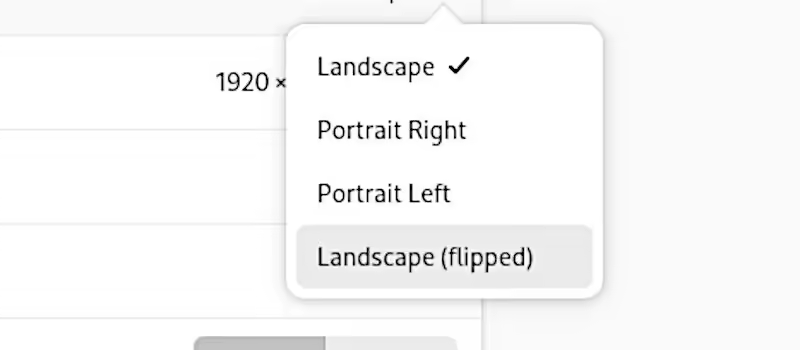
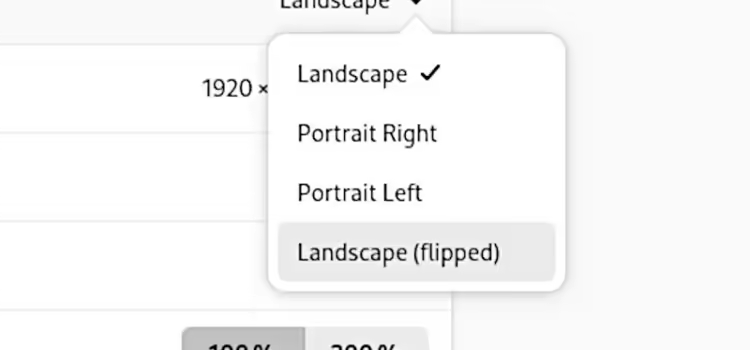
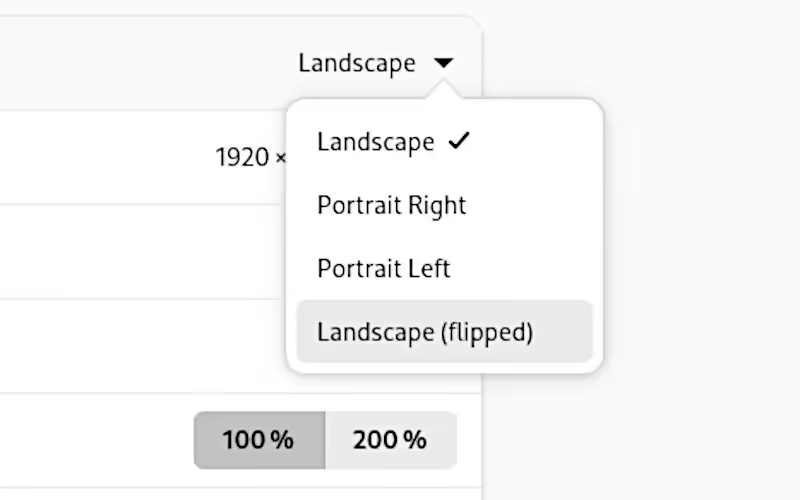
Under the Display section, you’ll see an option for Orientation. The default option is usually set to "Landscape." To flip your screen upside down, select Landscape (Flipped) from the dropdown menu. - Apply the Changes
After selecting the flipped orientation, click Apply to save the changes. Your screen will now flip upside down. - Confirm the Change
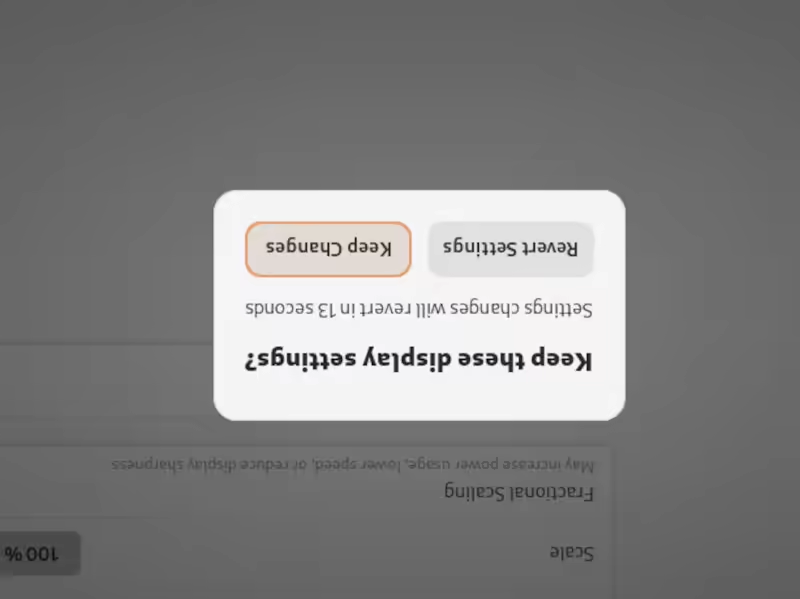
A confirmation box will pop up, asking if you'd like to keep these display settings. If everything looks good, click Keep Changes. If not, you can select Revert to return to the original orientation.
Troubleshooting
- If the screen orientation doesn’t change after applying the settings, check if you’re using the correct display if you have a multi-monitor setup.
Final Thoughts
Flipping your screen upside down in Ubuntu is a quick and easy process that can be done through the Settings app or with a keyboard shortcut. Whether you’re trying it out for fun or for a specific purpose, such as a specially mounted display, Ubuntu gives you the flexibility to adjust your screen orientation with ease.
Happy screen flipping!

Genie
I search for the answers that the big search engine won't answer.