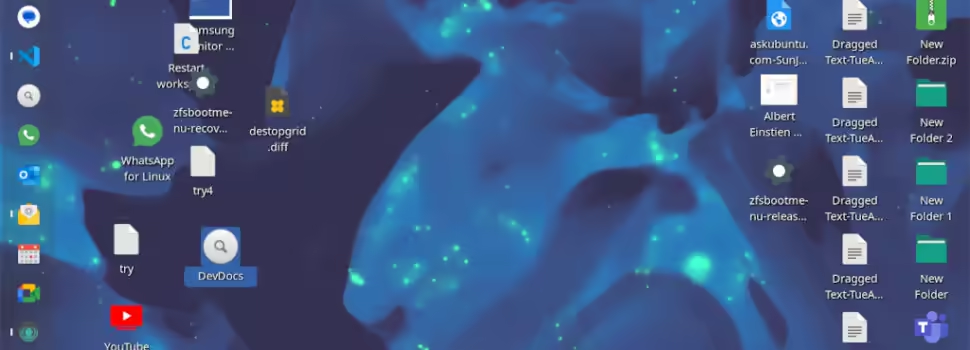
Bring back the Desktop Icons to Show in Gnome (Ubuntu)
As Gnome and Ubuntu evolve, some settings change and features users have come to rely on may no longer work as expected. A recent upgrade to Ubuntu left many users scratching their heads when Gnome Classic's desktop icons disappeared without warning. Fortunately, there's a simple fix for this issue.
In earlier versions of Gnome, users had desktop icons enabled by default, but this functionality was removed in more recent updates. Now, if you’ve upgraded to the latest version of Ubuntu and noticed that your beloved desktop icons are gone, don’t worry — you’re not alone. This article walks you through the steps to restore desktop icons in Gnome using a handy extension.
Why Did Desktop Icons Disappear?
Gnome, which has been the default desktop environment for Ubuntu, is constantly evolving to provide a more streamlined and modern experience. As part of this, desktop icons were removed from the core functionality to adhere to Gnome's philosophy of minimalism and a clutter-free workspace. However, many users still prefer the traditional desktop layout with icons, and Gnome has extensions that allow you to restore this feature.
Restoring Desktop Icons in Gnome
To bring back the desktop icons, you’ll need to use an extension called Desktop Icons NG (DING). Here’s how you can easily get it up and running.
Steps to Enable Desktop Icons:
- Visit the Gnome Extensions Website:
Head over to the Gnome Extensions site to find the Desktop Icons NG (DING) extension. - Install the Gnome Shell Integration Browser Extension:
If it’s your first time using Gnome extensions, you may be prompted to install the Gnome Shell Integration browser extension. This plugin allows you to interact with Gnome's extensions from within your web browser. - Toggle the Desktop Icons NG (DING) Extension On:
Once on the extension page, you’ll see a toggle switch in the top-right corner. Simply click this to turn the extension from 'off' to 'on'. Doing so will install and activate the desktop icons feature. - Log Out and Log Back In:
To apply the changes, log out of your current session and log back in. Upon returning, you should see your desktop icons restored on the Gnome Classic desktop.
Additional Features of Desktop Icons NG (DING)
Desktop Icons NG doesn’t just restore the basic desktop icon functionality; it also offers additional features to enhance your desktop experience. Some of these include:
- Drag-and-Drop Support: You can easily drag files, folders, and applications to your desktop for quick access.
- Context Menus: Right-clicking on an icon brings up a context menu where you can rename, delete, or move the item.
- Customizable Layouts: You can adjust the spacing and size of your desktop icons according to your preferences.
- Trash and Mounted Devices: The extension supports showing mounted drives and a trash bin on the desktop, much like traditional desktop environments.
Why Use Gnome Extensions?
Gnome’s extensions ecosystem allows users to customize their desktop environment to better suit their workflow. Whether it's enabling desktop icons, adding system monitors, or tweaking visual settings, Gnome extensions are an essential tool for anyone who wants to fine-tune their Ubuntu experience.
The Desktop Icons NG (DING) extension is a prime example of how extensions can bring back features that some users may miss from previous Gnome versions, all while staying compatible with Gnome's overall design philosophy.
Final Thoughts
If you miss seeing desktop icons on your Gnome Classic desktop after upgrading to a newer version of Ubuntu, the solution is just a few clicks away. The Desktop Icons NG (DING) extension provides an easy fix that can be quickly enabled through the Gnome Extensions website. With this extension, you’ll be able to enjoy a more traditional desktop experience while still benefiting from all the improvements and innovations Gnome brings.
Let us know in the comments if this solution worked for you, or if you’ve found other ways to bring desktop icons back to your Ubuntu setup!

Genie
I search for the answers that the big search engine won't answer.