
Free images tag: Plesk
Everything is fine until one time Plesk asks for a licence key after logging in and won't go any further.
Ionos Hosting
Some Ionos hosting comes with a licenced Plesk installed to make it easy to manage your sites. There is a licence key held for your Plesk in the Ionos control panel. It may only take a quick contact with Ionos support staff to reinstate the Plesk activation key to allow full service to resume.
Find the Key
It is possible to find the Plesk licence key yourself and copy and paste the activation code into the waiting Plesk key box you find after the login screen.
- Sign in to your Ionos - servers and cloud account
- Find the server with the issue and click it to expand the information
- look for the Plesk licence key:
- The license key is below the Admin Panel: and above the IP addresses assigned to the server.
- Copy out the Plesk licence key
- Log into the server and paste the key when prompted by Plesk
The screen will repopulate with your Plesk sites and information.
If you are running your website on Plesk and want to view the visitor statistics, you can use the AWStats program that reads the relevant log files and produces nice HTML tables of visitors and their relevant numbers.
AWStats
AWStats is installed by default on Plesk hosting. You can set the login page for the stats to be protected by your FTP password and FTP username. This is a nice security, so only authorized can view your site's stats.
But how do you find these AWStats? They don't appear in the Plesk control panel, and there is no information on how to see the reports that AWStats produces.
Viewing the AWStats on Plesk
To view the pretty HTML AWStats on a Plesk-hosted site, navigate to:
http://your-site.com/plesk-stat/webstat
You will be given a login screen and enter your FTP details if you have selected to protect the AWStats with your FTP credential.
What you will see now will vary between sites.
You may see a 403 error with a dropdown box to select the reporting period.
You may see the AWStats and virtually no traffic, maybe many zeros, or very few visitors.
You may see your traffic as expected.
403 error or zero traffic
If Plesk AWStats is giving you a 403 error, but you have logged in and have the select period drop-down box or you have virtually no traffic reported, possibly AWStats shows many zeros, you can try this link:
https://your-site.com/plesk-stat/webstat-SSL
You should now see a more relevant representation of your site's traffic in AWStats HTML.
SSL vs HTTP
Awstats separates reporting between SSL and non-SSL traffic. If you get a 403 or no traffic reported, then you are probably serving your site traffic through SSL, and you need to view the AWStats SSL-enabled link to see the numbers.
Uploading the cloudflare .pem file to plesk gives an error :
Could not issue an SSL/TLS certificate for yourdomain.com
Details
The private key is invalid. Please double-check and try again.
Cloudflare Full SSL
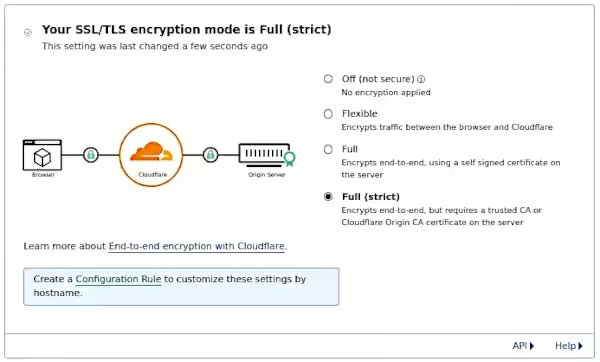
Adding the Cloudflare Origin Certificate to Plesk is used to provide encryption between Cloudflare and your origin server. Enabling this free SSL/TLS certificate will allow you to choose 'Full (Strict)' SSL.
Full (strict)
Encrypts end-to-end, but requires a trusted CA or Cloudflare Origin CA certificate on the server
Generate CF Origin Certificates and Private Keys
Generating the keys required for Full (Strict) is available in the cloudflare dashboard. The free SSL/TLS certificates are only useful for use with cloudflare hosted sites and need to be installed into the plesk server. Follow these cloudflare instructions to generate the Origin SSL keys. Don't navigate away from the screen with your private key. Copy and paste this into a .txt file and save it for future reference. You won't be able to view the private key again from within cloudflare.
Install SSL to Plesk
This is where the problems can start. What should be a very simple process can throw up an error that doesn't help much. Thankfully the solution is available and quick to implement. This solution will get the cloudflare SSL/TSL origin certificate and private key installed on your Plesk powered server.
When you choose to upload the .pem file supplied by cloudflare you get an error message 'The private key is invalid. Please double-check and try again.' Trying again doesn't solve the problem. There is also no mention of how to upload the cloudflare generated private key.
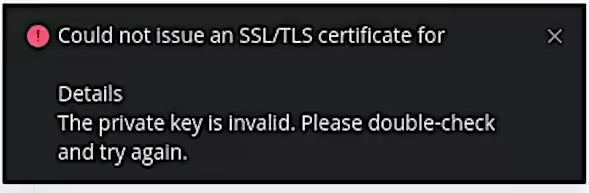
The Solution is to not use the upload buttons presented to you in Plesk server to add a .PEM file to the site. Do not use the feature of SSL/TLS certificate:
'Upload a certificate you already purchased
Where can I find the .pem file?'
Don't upload the .pem file.
Alternately the method of just copy and pasting the two cloudflare keys will work.
Adding the Certificate and Private Keys
From withing your Plesk server domain:
Navigate to: Websites & Domains, Security SSL/TLS Certificates, Advanced Settings (button), Add SSL/TLS Certificate (button).
You will arrive at the advanced, yet simple to use SSL/TLS installation page that bypasses the need for .pem files.
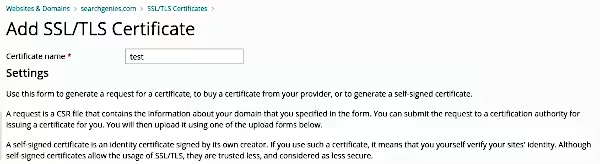
Give the certificate a name (to help you identify it from a list later)
Paste the full private key into the empty box labelled 'Private key (*.key) *'
-----BEGIN PRIVATE KEY-----
-----END PRIVATE KEY-----
Paste the full certificate into the empty box labelled 'Certificate (*.crt) *'
-----BEGIN CERTIFICATE-----
.......
-----END CERTIFICATE-----
Don't put anything in the empty box labelled 'CA certificate (*-ca.crt)', just leave it blank as this is not required.
Click the button 'Upload Certificate' and then follow the link to make this certificate active referencing the name you chose to identify it with earlier.
Cloudflare Full Strict Enable
With the .pem file installed to Plesk and selected as enabled you can now set the cloudflare setting to strict SSL (full) that will utilise the Origin SSL/TLS certificate you have just successfully installed and activated.