
Free images tag: Cloudflare
You are expecting to see a video, but all you get is this message in white text on a black background: 'This video has not been configured to be allowed on this domain.'
The error messages relates to a Cloudflare-hosted video, and it is in the control of the webmaster. If you are a visitor to the site, then there is nothing you can fix. If there is a way of contacting the webmaster, then you can alert them to the problem and link to this post if you think it will help.
Webmasters
If you are a webmaster and have added a Cloudflare stream video to your site, and you receive this message, there are a couple of things you can do to see where the problem lies.
The Fix
Firstly
From within the Cloudflare accounts panel, use the left-hand menu panel to find Stream/Video. Find the 'Allowed Origins' box, delete the domain so the box is blank, and save your changes.
Observe if the video now plays on your website.
You don't want to leave the 'Allowed Origins' box blank for long as anyone can hotlink your video and run up your video hosting bill to Cloudflare. So, do a few refreshes of the site and see if the video works.
If your video plays, you can go back to the 'Allowed Origins' box and enter the correct domain that is hosting the player code.
Secondly
If you have identified the video can play correctly on your site when the 'Allowed Origins' is empty, and you do not get the 'This video has not been configured to be allowed on this domain.' message, you should do a further check in Cloudflare panel.
Cloudflare Settings
Use the left-hand menu to navigate to 'Rules', 'Transform Rules', 'Managed Transforms', and set 'Add security headers' to X - not enabled.

With the 'Add security headers' no longer enabled, refresh the page with your Cloudflare stream video code and wait for the video to start.
Stream Broken
Add security headers
Adds several security-related HTTP response headers providing cross-site scripting (XSS) protection.
Enabling this security feature in Cloudfare can break the Cloudflare stream video from working on your site if you specify a domain for the video to show on.
Every millisecond counts in today's fast-paced world, where users expect websites to load quickly. Website owners and developers must ensure that their website loads quickly and efficiently to provide an excellent user experience. Cloud caching services are one of the most effective ways to improve website performance. In this blog post, we will discuss the advantages of cloud caching and how services like Cloudflare and Ezoic can help improve website performance.
What is Cloud Caching?
Cloud caching is storing frequently accessed data in cache memory, a high-speed storage system that can be accessed quickly. When a user visits a website, the web page is loaded from the cache memory instead of fetching it from the server. This significantly reduces the load time and improves the website's overall performance. Cloud caching can be done in multiple layers, from the browser cache to the server cache and the CDN (Content Delivery Network) cache.
Advantages of Cloud Caching
Faster Website Loading Time
The primary advantage of cloud caching is the faster loading time of web pages. When a website is cached, the cached version of the web page is served to the user, which reduces the time taken to fetch the web page from the server. This results in a faster website loading time, which is critical for providing an excellent user experience. A faster website improves rankings, as search engines like Google prefer faster websites.
Improved Website Performance
Cloud caching improves website performance by reducing the load on the server. When a web page is cached, the server doesn't have to process every request for that web page. Instead, the web page's cached version is served, reducing the server load. This results in improved website performance and better scalability.
Reduced Server Load
Cloud caching reduces the load on the server, which is beneficial for websites with high traffic. When a website is cached, the server doesn't have to process every request for that web page. Instead, the web page's cached version is served, reducing the server load. This results in improved website performance and better scalability.
Cost-Effective
Cloud caching is a cost-effective solution to improve website performance. Using a cloud caching service, website owners can reduce their server load and improve website performance without investing in expensive hardware or infrastructure. This makes cloud caching an excellent option for small to medium-sized businesses that don't have the resources to invest in expensive hardware.
Better User Experience
A faster-loading website provides a better user experience, critical for retaining and converting users into customers. When a user visits a website, they expect it to load quickly; if it doesn't, they are likely to leave it. Using a cloud caching service, website owners can ensure that their website loads quickly, providing an excellent user experience.
Cloud Caching Services - Cloudflare and Ezoic
Several cloud caching services are available, but two of the most popular ones are Cloudflare and Ezoic. Both Cloudflare and Ezoic offer cloud caching services that can significantly improve website performance.
Cloudflare is a content delivery network (CDN) that provides cloud caching, DDoS protection, and other security features. Cloudflare's caching service is easy to set up and can significantly improve website performance. Cloudflare's cache works by storing frequently accessed files and pages in its cache memory, reducing the server's load and improving website performance.
Ezoic is an AI-driven platform that provides website optimization services. Ezoic's cloud caching service works by caching frequently accessed pages and files and serving them to users from the cache memory. Ezoic's caching service optimizes images and reduces file sizes, improving website performance.
Conclusion
Cloud caching effectively improves website performance, reduces server load, and provides a better user experience. Website owners can easily implement caching by using a cloud caching service like Cloudflare or Ezoic and enjoy the benefits without investing in expensive hardware or infrastructure.
Cloudflare and Ezoic are popular cloud caching services offering additional features like security and optimization. Cloudflare's content delivery network and security features make it an excellent choice for websites that require protection against DDoS attacks and other security threats. On the other hand, Ezoic's AI-driven optimization platform makes it an ideal choice for websites that require additional optimization features, such as image optimization and file size reduction.
Cloud caching is a powerful tool that significantly improves website performance and provides a better user experience. Website owners can easily implement caching by using a cloud caching service like Cloudflare or Ezoic and enjoy the benefits without investing in expensive hardware or infrastructure.
There is a change afoot in the Domain name charges driven by one of the big players to reduce your costs. Cloudflare have announced they will renew your domain names for what it costs them. No mark up for their customers who renew their domain names with them.
This may not be a huge amount of cost of a single domain, but as your portfolio expands these costs can mount up. Reducing the costs of running a website is key to keeping it running.
Free
Getting a cloudflare account is free. There is no need to pay for the cloudflare service if you don't want the added features. This free tier supports the low cost domain name registration and renewal fees.
Cloudflare
While cloudflare is most often associated as being a CDN, they also offer firewall and domain names to mention just a few of their skills. Get a free cloudflare account and start saving on your Domain Name Renewals.
You need to have your domain name on the cloudflare system by adding their name servers to your hosting.
Lock
Moving a domain name to cloudflare will require you to access the current domain name host and remove the 'transfer lock'. This is usually just a case of clicking a button to disable the transfer lock. With the lock disabled it will allow another provider to control the domain. Without the transfer lock disabled it will not be possible to move the domain.
Available
With the lock removed and the domain using the cloudflare DNS servers the domain names will be shown as available for transfer in the cloudflare interface.
EPP
The EPP Code is basically a password for a domain name. It is a security measure, ensuring that only the domain name owner can transfer a domain name. You will need it if you are wanting to transfer the domain to another registrar.
You will need to generate an EPP code to make the move happen. The EPP code is stored with the current domain name provider. You will need to copy and paste the short code into the form on cloudflare domain transfer page from the current domain name registrar.
Confirm Contact Info
Confirm the contact information for the domain registration is correct. The cloudflare domain name registration includes 'privacy' (WHOIS Redaction) for free. The public records are redacted when privacy is enabled. This can reduce the spam that the contact email address gets and helps to protect your privacy.
Time
There is delay before the domain names will move. This is part of the security as warning emails are sent and responses are made should they be required.
You can check on the process in the cloudflare interface and pay any fees due to renew the domains you have transferred.
Bing Not Indexing Site
Search Engines February 25, 2023 0
The site has been well received by google, you have top placements from the big G and you must admit that google loves you. On the other hand, Bing! is not a fan, it doesn't see any value in your site and considers it spam.
Sounds familiar?
Knock Knock
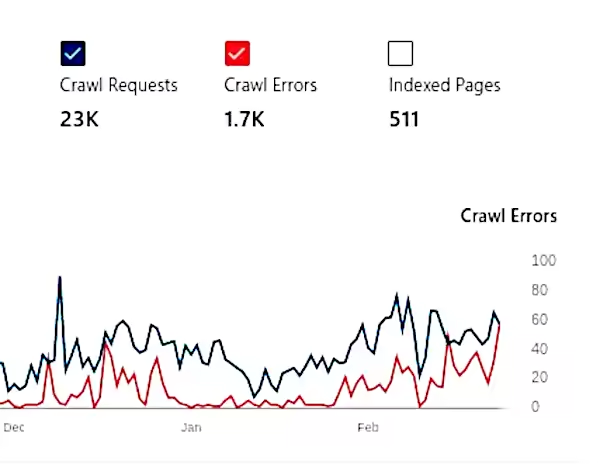
Check that Bing can see your site. Although google is allowed through your website security, it may be a different story for Bing. The Microsoft search bot is quite abusive and it can get itself blocked at times. Use these Bing Webmaster tools to check you are not seeing as many bing errors as crawl requests. You will see some, if not quite a few bing errors. The important factor is more successful crawler hits than fails.
Jump through hoops
None of it makes any sense, If the biggest search engine on the planet loves your content then why is Bing so difficult to please?
Have you reached out to the bing support? You should do this to ensure they can't give you a reason. They will send you links to follow about providing great content, making your site easy to navigate and reduce the number of ads above the fold. Well, google is happy with your site so it won't be due to the basics at fault.
Hopefully your interaction with bing! support will be fruitful and give you something to try. Exhaust their suggestions and reply politely to their emails. I got this far and things didn't improve.
Blacklisted
Bing had blacklisted the site and this had a knock on effect with the other search engines that piggy-back from Microsoft's Bing. Not a huge factor in itself but it is annoying that bing is just wrong which can be proved if google is correct.
Go all in
With confirmation that the crawler can access your site successfully and microsoft staff fully exhausted their advice and every suggestion enabled the next step was to go all in. The only way I could convince bing that the site was worthy of inclusion was to make sure the crawler could see every single page I had written.
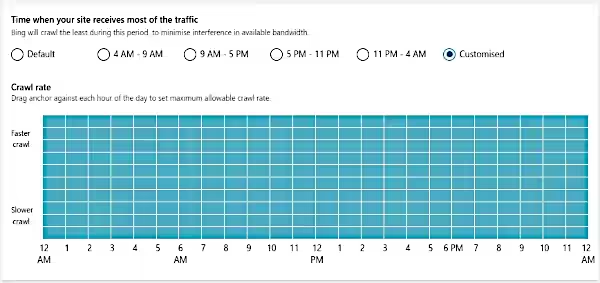
Invoke Max crawl rate.
Index Now!
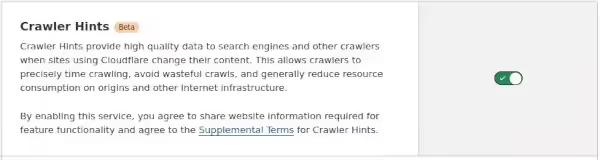
If your site is using cloudflare there is the option to enable 'IndexNow! - Crawler Hints' in the bing webmaster tool. It generates a fair bit of dross, but it's free and helps send good signals to bing from cloudflare about your site.
Time
After months of waiting. The bing started to show results. During this time the crawler was all over the content with its rate set to the max. Cloudflare crawler hints was working away doing good things. The graph show when the search engine decided it would be a good idea to index the content that google has acknowledged for years.
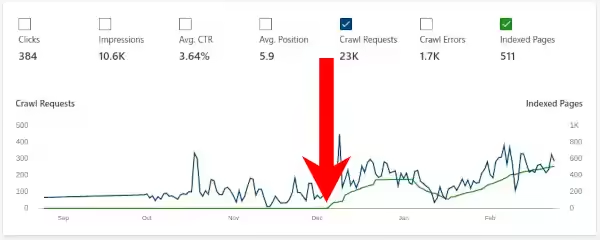
Up until the red arrow, bing indexed pages (green line) are zero. After the red arrow pages are steadily being added to the search engine.
A drop-off happens, but it recovers.
Something changed to enable bing to add the site. To the left of the red arrow show the blue line rather flat and steady until the max crawl rate was set. More crawls can be seen by the peaks of blue. These blue peaks are bing learning about the site, seeing how great it is and considering the addition to the index. When the decision is made to add the site you can see the green line pick up and take off.
Mission Accomplished
Bing search is now showing results that come from the site. Just as it should have always been, but for whatever reason the engine was stuck in a (sad face) mode. Giving the crawler a kick and allowing it plenty of time seemed to do the trick. While this is only a guess as to why things changed, they definitely did change and bing is now happily serving results from the site it was originally ignoring.
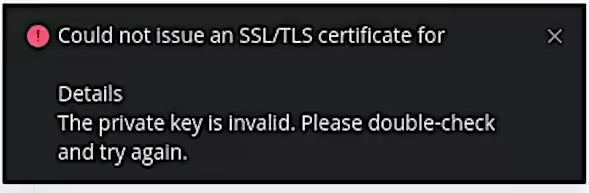
Uploading the cloudflare .pem file to plesk gives an error :
Could not issue an SSL/TLS certificate for yourdomain.com
Details
The private key is invalid. Please double-check and try again.
Cloudflare Full SSL
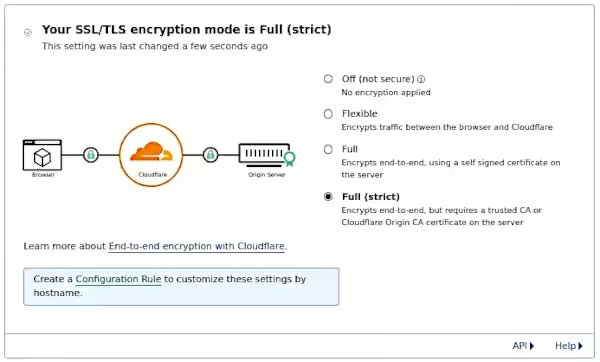
Adding the Cloudflare Origin Certificate to Plesk is used to provide encryption between Cloudflare and your origin server. Enabling this free SSL/TLS certificate will allow you to choose 'Full (Strict)' SSL.
Full (strict)
Encrypts end-to-end, but requires a trusted CA or Cloudflare Origin CA certificate on the server
Generate CF Origin Certificates and Private Keys
Generating the keys required for Full (Strict) is available in the cloudflare dashboard. The free SSL/TLS certificates are only useful for use with cloudflare hosted sites and need to be installed into the plesk server. Follow these cloudflare instructions to generate the Origin SSL keys. Don't navigate away from the screen with your private key. Copy and paste this into a .txt file and save it for future reference. You won't be able to view the private key again from within cloudflare.
Install SSL to Plesk
This is where the problems can start. What should be a very simple process can throw up an error that doesn't help much. Thankfully the solution is available and quick to implement. This solution will get the cloudflare SSL/TSL origin certificate and private key installed on your Plesk powered server.
When you choose to upload the .pem file supplied by cloudflare you get an error message 'The private key is invalid. Please double-check and try again.' Trying again doesn't solve the problem. There is also no mention of how to upload the cloudflare generated private key.
The Solution is to not use the upload buttons presented to you in Plesk server to add a .PEM file to the site. Do not use the feature of SSL/TLS certificate:
'Upload a certificate you already purchased
Where can I find the .pem file?'
Don't upload the .pem file.
Alternately the method of just copy and pasting the two cloudflare keys will work.
Adding the Certificate and Private Keys
From withing your Plesk server domain:
Navigate to: Websites & Domains, Security SSL/TLS Certificates, Advanced Settings (button), Add SSL/TLS Certificate (button).
You will arrive at the advanced, yet simple to use SSL/TLS installation page that bypasses the need for .pem files.
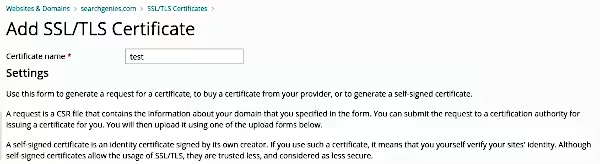
Give the certificate a name (to help you identify it from a list later)
Paste the full private key into the empty box labelled 'Private key (*.key) *'
-----BEGIN PRIVATE KEY-----
-----END PRIVATE KEY-----
Paste the full certificate into the empty box labelled 'Certificate (*.crt) *'
-----BEGIN CERTIFICATE-----
.......
-----END CERTIFICATE-----
Don't put anything in the empty box labelled 'CA certificate (*-ca.crt)', just leave it blank as this is not required.
Click the button 'Upload Certificate' and then follow the link to make this certificate active referencing the name you chose to identify it with earlier.
Cloudflare Full Strict Enable
With the .pem file installed to Plesk and selected as enabled you can now set the cloudflare setting to strict SSL (full) that will utilise the Origin SSL/TLS certificate you have just successfully installed and activated.